How to Use Internet on Laptop While Traveling: Expert Tips
Imagine you’re on a thrilling adventure, exploring new cities or escaping to serene landscapes. Your laptop is your trusty companion, ready to help you stay connected, entertained, and productive.
But here’s the challenge: How do you ensure a smooth internet connection while on the move? You don’t want to miss out on sharing your experiences, finding directions, or catching up on your favorite shows. This guide is here to help you master the art of using the internet on your laptop while traveling.
Dive in, and discover simple yet effective strategies to keep you online wherever your journey takes you. From understanding Wi-Fi hotspots to choosing the best portable routers, you’ll gain insights that make connectivity hassle-free. Let’s make sure your travels are seamless and connected!

Credit: www.pandasecurity.com
Choosing The Right Internet Device
Traveling with a laptop opens up endless possibilities for staying connected. Use mobile hotspots or portable Wi-Fi devices to access the internet easily. These options ensure reliable connectivity, making online tasks seamless while on the move.
Traveling with your laptop can be a fantastic way to stay connected, whether for work, entertainment, or keeping in touch with family. Yet, finding the best internet device can be overwhelming. You want something reliable, easy to carry, and cost-effective. How do you decide which device suits your travel needs? Let’s explore some popular choices that can make your journey smoother.
Portable Wi-fi Hotspots
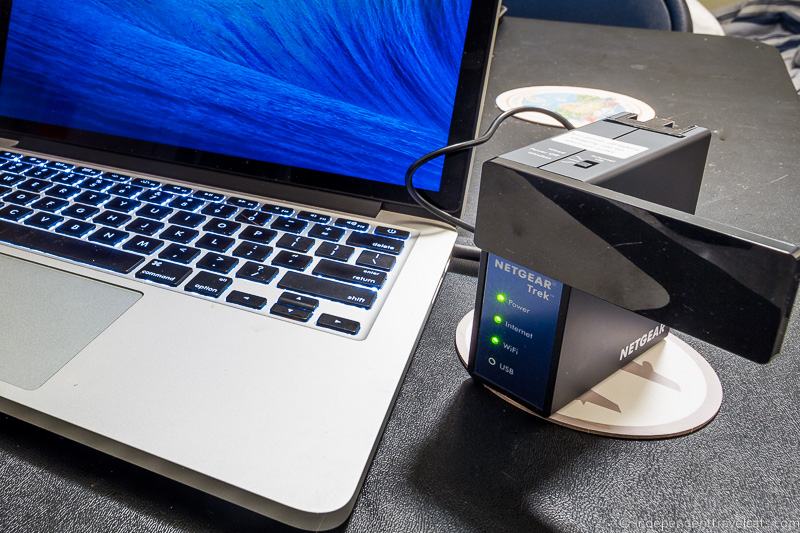
Portable Wi-Fi hotspots are a top choice for many travelers. They offer a simple solution by creating a personal internet bubble around you. These devices connect to cellular networks and allow multiple devices to join the same network. Imagine sitting at a remote beach and still being able to upload your travel photos. With a portable Wi-Fi hotspot, you can do just that. Look for models with long battery life and support for international SIM cards if you’re traveling abroad.
Usb Dongles
USB dongles are another handy option. They are compact and easy to use. Just plug one into your laptop’s USB port, and you’re online. This is a great choice if you’re traveling light. They often require a data plan, so check if your current mobile provider offers dongle options. You might be surprised at how affordable and flexible these plans can be.
Sim Card Options
If your laptop has a SIM card slot, you’re in luck. This feature allows you to use a local SIM card to access the internet. It’s especially useful when traveling internationally. Purchasing a local SIM card can save you from hefty roaming charges. Plus, it gives you a taste of how locals experience mobile internet. Just ensure your laptop is unlocked and supports the necessary bands for the countries you visit. Choosing the right internet device can transform your travel experience. Consider your specific needs and the nature of your trip. Are you planning to stay in one country or explore multiple destinations? Each option has its perks, so weigh them carefully. Which device do you think would best suit your travel adventures?

Credit: forum.gl-inet.com
Utilizing Smartphone Tethering
Connect your laptop to the internet while traveling by using smartphone tethering. This method transforms your phone into a mobile hotspot. Easily browse the web, check emails, or work remotely without needing Wi-Fi.
Traveling with a laptop can be both exciting and challenging, especially when you need a reliable internet connection. One of the most convenient solutions is using smartphone tethering. This technique allows you to share your phone’s internet with your laptop, ensuring you stay connected no matter where you are. Whether you’re on a train journey or sitting in a cozy café in a foreign city, tethering can be a lifesaver. But how can you make the most of it? Let’s dive into the different methods and considerations for smartphone tethering.
Tethering Via Usb
Connecting your smartphone to your laptop via USB for internet access is both straightforward and efficient. By using a USB cable, you ensure a stable connection without worrying about Wi-Fi signals dropping. This method often provides faster internet speeds compared to wireless options. Simply connect your phone to your laptop with the USB cable and enable the USB tethering option in your phone’s settings. This process is usually found in the network settings, often under “Hotspot” or “Tethering.” USB tethering has the added advantage of charging your phone while you surf the web. This way, you won’t drain your phone’s battery while staying connected.
Wireless Tethering
Wireless tethering, also known as mobile hotspot, allows you to share your phone’s internet with your laptop without any cables. This is perfect for situations where you want to move around freely or have limited space. To activate wireless tethering, go to your phone’s settings and turn on the mobile hotspot feature. You can set a password to secure the connection, ensuring that only your devices can connect. Think about privacy. When using a wireless hotspot in public spaces, ensure your connection is encrypted. This prevents unauthorized access to your data.
Battery Considerations
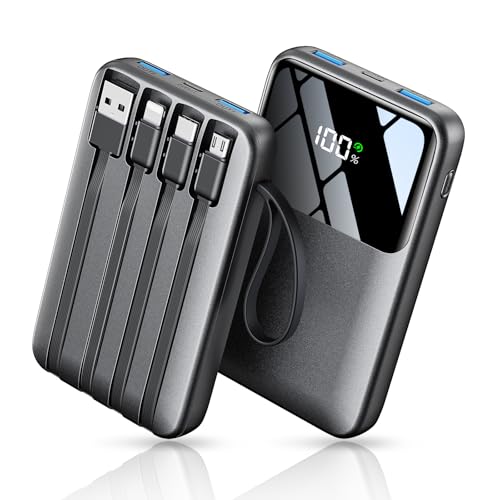
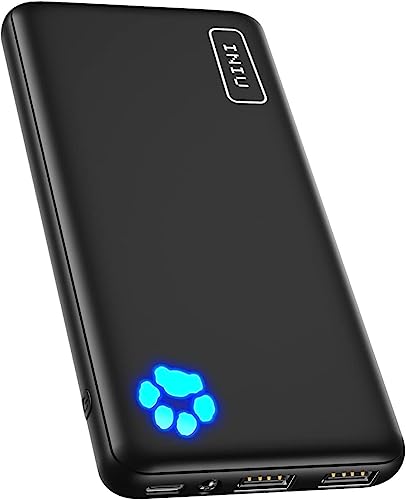
While tethering is convenient, it can quickly drain your smartphone’s battery. It’s crucial to manage your phone’s power to keep your connection active throughout the day. Consider reducing your screen brightness and closing unnecessary apps to preserve battery life. If possible, carry a portable charger or power bank to recharge your phone on the go. Monitor your data usage. Tethering can consume a significant amount of data, so be mindful of your browsing habits. Watching videos or downloading large files can quickly eat into your data plan. What’s your strategy for managing battery life while tethering? Balancing connectivity and battery usage is key to a seamless travel experience. Use these insights to make your travels more enjoyable and connected.
Accessing Public Wi-fi Safely
Traveling with a laptop? Secure public Wi-Fi connections by using a VPN. Avoid entering sensitive information on unsecured networks. Regularly update your software to protect against threats.
Traveling with your laptop can be both thrilling and daunting, especially when it comes to staying connected. Public Wi-Fi is a convenient option, but it also poses security risks. How can you ensure that your data remains safe while accessing the internet on the go? Let’s explore some essential tips for accessing public Wi-Fi safely.
Finding Reliable Networks
Before connecting to any public Wi-Fi, it’s crucial to identify reliable networks. Look for networks provided by reputable businesses like well-known cafes, hotels, and airports. These networks are generally more secure than random, unsecured connections you might find on the street. Pay attention to network names. A network with a name that closely resembles a legitimate business but has a slight variation could be a trap set by hackers. Double-check with staff if you’re unsure about which network to connect to.
Using Vpn For Security
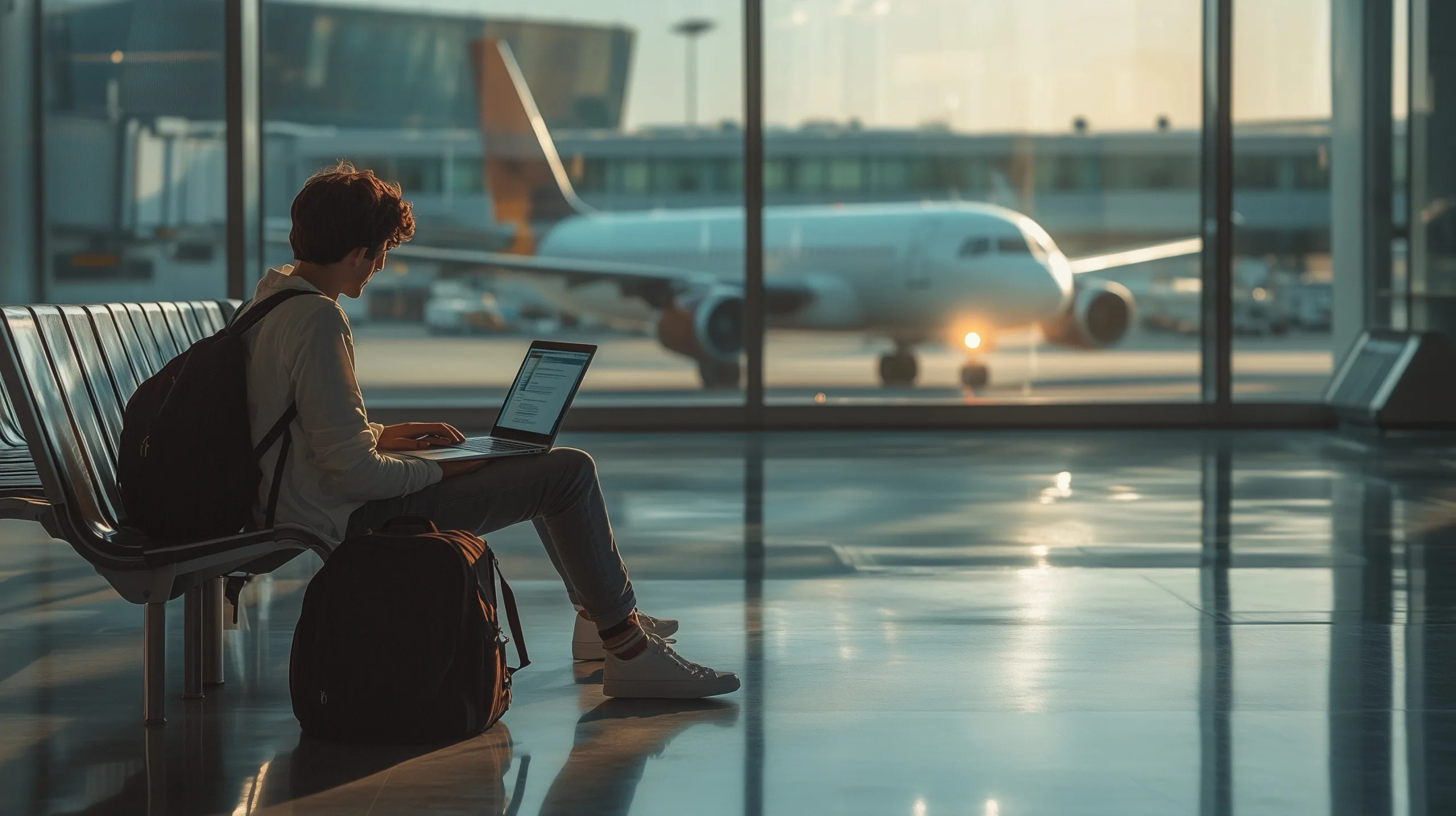
A Virtual Private Network (VPN) is your best friend when using public Wi-Fi. It encrypts your internet traffic, making it difficult for hackers to access your data. Consider investing in a reputable VPN service for added security. Imagine you’re at an airport, connecting to Wi-Fi before a long flight. Without a VPN, your personal information is up for grabs by anyone with malicious intent. With a VPN, you can browse confidently, knowing your data is protected.
Avoiding Data Theft
It’s essential to be proactive in preventing data theft. Avoid accessing sensitive information like online banking or entering credit card details on public Wi-Fi. If it’s unavoidable, ensure the website uses HTTPS, which indicates a secure connection. Think about the consequences of a data breach. Losing personal information can lead to identity theft and financial loss. By taking simple precautions, you can minimize these risks and enjoy a stress-free travel experience. Have you ever been cautious about using public Wi-Fi? Reflect on your past experiences and consider how these tips could enhance your future travels. Stay safe and connected, no matter where your journey takes you.
Credit: independenttravelcats.com
Offline Solutions For Connectivity
Traveling can be exciting, but it often poses challenges for staying connected. Lack of internet access can affect your productivity on the road. Offline solutions can help maintain connectivity without relying on Wi-Fi or mobile data. Planning ahead can ensure you stay informed and connected even in remote areas.
Downloading Content In Advance
Before your journey, download essential content to your laptop. Save articles, videos, and documents for offline access. Streaming platforms often allow downloading shows and movies. Prepare a playlist or library to enjoy without internet. This way, you can stay entertained during long trips.
Using Offline Maps
Navigation is crucial while traveling. Download offline maps for your destination. Apps like Google Maps offer offline features. Save the map of the area you’ll visit. You can access directions and routes without needing internet. Offline maps keep you on track in unfamiliar places.
Preparing Emails Offline
Emails are vital for communication. Draft emails offline and save them. Use your laptop’s email client to write and organize messages. Once you find connectivity, send them quickly. This method keeps communication seamless despite internet issues. It ensures you don’t miss important correspondence.
Managing Data Consumption
Using the internet on a laptop while traveling can be a challenge. Managing data consumption is key to ensure you don’t exceed your plan. It’s important to track usage and optimize browsing. Limiting background data also helps in saving bandwidth.
Tracking Data Usage
Monitor your data usage regularly. Most laptops offer built-in tools for this purpose. Check the settings for data usage statistics. This helps you understand which apps consume the most data. Adjust your habits accordingly.
Optimizing Web Browsing
Use browsers that compress data. Enable features that reduce image quality. Disable auto-play videos for better data management. Bookmark pages for offline reading. This conserves data and improves browsing speed.
Limiting Background Data
Turn off automatic updates. Restrict background processes while traveling. Close apps not in use. Set data limits for specific apps. This minimizes data drainage and keeps your usage under control.
Exploring Local Sim Cards
Traveling with a laptop means staying connected is crucial. Local SIM cards offer a cost-effective solution for internet access. They provide flexibility and help avoid hefty roaming charges. Let’s dive into how to use local SIM cards while traveling.
Benefits Of Local Sims
Local SIM cards often offer better rates. They provide cheaper data packages compared to international plans. You get better connection quality and network coverage. Local SIMs are easy to find at airports and mobile stores. They allow you to have a local phone number. This can be handy for booking services and contacting locals.
Purchasing And Activating
Buying a local SIM card is simple. Visit a local store or airport kiosk. Ensure your phone is unlocked before buying. Choose a SIM card that fits your device. Activation is usually quick. Follow the instructions provided by the vendor. Some countries require identification. Be prepared to show your passport.
Understanding Local Plans
Local plans vary by country. Research options before your trip. Look for plans that suit your needs. Consider data limits and validity periods. Some plans offer unlimited data. Others may have daily limits. Check if the plan includes calls or texts. Always read the terms and conditions. This helps avoid unexpected charges.
Leveraging Hotel And Accommodation Wi-fi
Travelers can easily stay connected by utilizing hotel Wi-Fi for their laptops. This convenient access allows seamless browsing, email checking, and streaming while on the road. Always ensure your connection is secure by using a VPN for safe internet usage.
Leveraging hotel and accommodation Wi-Fi is essential for travelers using laptops. Free Wi-Fi is a major perk for many hotels. It allows you to stay connected without using mobile data. But, not all hotel Wi-Fi connections offer the same quality or security. Understanding these differences is crucial for a smooth online experience. Below are key factors to consider for using hotel Wi-Fi effectively.
Checking Wi-fi Quality
Always check the Wi-Fi quality before settling in. Slow speeds can frustrate your plans. Upon arrival, ask about the Wi-Fi setup. Some hotels offer basic and premium options. Use online tools to test connection speed. This helps gauge if it meets your needs. Avoid peak times to get faster speeds. Busy hours can slow down the connection.
Security Measures
Hotel Wi-Fi can be risky. Public networks are often less secure. Use a VPN to protect your data. It creates a secure tunnel for your information. Avoid accessing sensitive information on public Wi-Fi. Check if the hotel offers a secure connection. Sometimes, they provide a password-protected network. This adds an extra layer of security.
Handling Connectivity Issues
Connectivity problems can occur. Know how to troubleshoot basic issues. Restart your device if you face connection drops. Sometimes, simply reconnecting solves the problem. Ask the front desk for help if needed. They might reset the router to fix the issue. Keep offline backups of important files. This ensures work continuity during outages.
Travel-friendly Applications
Travel-friendly applications offer simple solutions for using the internet on laptops while on the move. Connect through Wi-Fi hotspots or mobile tethering for seamless browsing. Stay connected with user-friendly apps designed for travelers.
Traveling with a laptop opens up a world of possibilities, from staying connected with loved ones to being productive on the go. But what apps should you have to make your journey smoother? Imagine you’re on a train through the Swiss Alps, or waiting for a flight in bustling Tokyo. Travel-friendly applications can turn these moments into productive or relaxing experiences, ensuring you’re never out of touch or out of things to do. Here are some essential apps that can enhance your travel experience:
Essential Apps For Connectivity
Staying connected is crucial while traveling. Wi-Fi Finder helps you locate nearby Wi-Fi hotspots, ensuring that you can connect to the internet wherever you are. VPN services like NordVPN or ExpressVPN keep your browsing secure, especially when using public networks. Ever tried to join an important video call in a busy airport? Speedtest can help you assess the available bandwidth before hopping on a call.
Offline Apps For Productivity
What if you lose internet access? Offline apps can be your savior. Google Docs offline mode allows you to edit documents without a connection, and everything syncs once you’re back online. Evernote lets you jot down ideas, draft blog posts, or organize your itinerary without needing Wi-Fi. Have you ever wanted to learn a new skill during a long flight? Offline courses from platforms like Coursera can turn travel time into learning time.
Communication Apps
Being away from home doesn’t mean being out of touch. WhatsApp is perfect for texting or calling family and friends without incurring international charges. Skype offers video calls that can bridge the distance between you and your loved ones. Imagine sharing a spectacular sunset view with your family back home through a live video call. For professional communication, Slack can help you stay in touch with your colleagues, ensuring that you’re always in the loop. What app do you think could change the way you travel? Whether it’s for connectivity, productivity, or communication, the right application can make your journey more enjoyable and efficient. Consider downloading these apps before your next trip to ensure you’re prepared for whatever comes your way.
Frequently Asked Questions
How Can I Get Internet On My Laptop Without Being At Home?
Connect your laptop to the internet using a portable Wi-Fi hotspot or tethering from your smartphone’s data plan. Use public Wi-Fi networks at cafes, libraries, or airports. Ensure your device has a built-in cellular modem for direct mobile network access, or use a USB modem for connectivity.
How Can I Get Internet On My Laptop Without Wi-fi?
Use a USB tethering feature from your smartphone. Connect via an Ethernet cable or use a mobile broadband USB dongle.
What Is The Safest Way To Access The Internet When Traveling?
Use a VPN to encrypt your connection for safer internet access. Connect to secure, trusted Wi-Fi networks. Avoid public Wi-Fi for sensitive tasks. Update your devices and software regularly. Enable two-factor authentication for added security.
How To Use Internet In Flight Mode In Laptop?
Enable Wi-Fi after switching your laptop to flight mode. Connect to available networks to access the internet. Use Ethernet for wired connections.
Conclusion
Traveling with a laptop can be easy with internet access. Try using mobile hotspots or tethering your phone. These are simple ways to stay connected. Public Wi-Fi is another option, but be cautious. Always secure your connection with a VPN.
Consider portable Wi-Fi devices for more reliable access. They offer convenience and flexibility. Remember to check data plans before traveling. This prevents unexpected charges. Staying connected helps you enjoy your trip more. It’s about balance and planning. With these tips, you can use the internet on your laptop anywhere.
Safe travels and happy browsing!